The BLUF
How to set up kube-bench scans and export reports in an EKS cluster.
The long description
Running kube-bench scans as a k8s job against an EKS cluster is a pretty simple task. Even setting kube-bench up as a cron job is a fairly simple task. The issue arises when you have to do something with the results of the scan.
The answer we settled on was executing kube-bench as an init container, saving stdout to a file on a pvc, mounting the pvc to the AWS CLI container, and pushing the file to an S3 bucket. Our decisions were driven by a requirement which dictated that the reports be made available to a third party who would process them in a manner of their choosing.
The kube-bench tool can output files in JSON and JUNIT formats. For my purposes, the best solution is to take a JSON file and push it to an S3 bucket where it can be stored, retrieved, and fed into another system. In an ideal world you’d want to push the output directly into a system under your control. In many cases you just have to make the results available to another party.
The process can be broken down into two main components: configuring AWS and configuring Kubernetes resources.
Configuring AWS
Create an S3 bucket
Name it kluster-bucket
Create Identity provider
An identity provider tied to the cluster’s OIDC provider is required to link AWS IAM to Kubernetes access control. In many cases, you may already have one in place. If not, follow these steps:
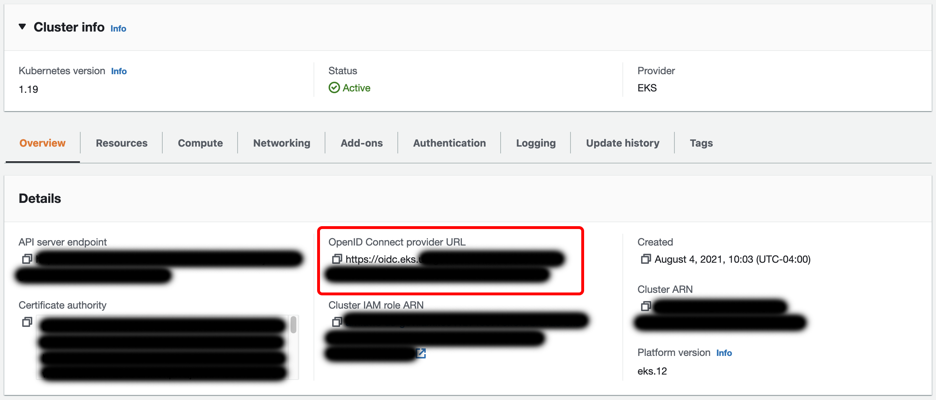
- Copy the OpenID Connect provider URL from the cluster details at EKS > Clusters >
cluster name - Go to IAM -> Identity providers and click Add Provider
- Select OpenID Connect, enter the Provider URL copied from the cluster details in step 1, and select sts.amazonaws.com in Audience.
Create an IAM Policy
Create an IAM policy allowing write access to a specific S3 bucket:
{
 “Version”: “2012–10–17”,
 “Statement”: [
    {
      “Effect”: “Allow”,
      “Action”: [
               “s3:PutObject”
       ],
       “Resource”: “arn:aws:s3:::kluster-bucket/*”
    }
 ]
}
Create an IAM Role
- Go to IAM > Roles
- Click Create Role
- Select Web identity for Trusted entity type
- Under Identity provider, select the OIDC Identity provider created earlier
- Select sts.amazonaws.com for Audience
- Add the S3 IAM policy created earlier
- Name and finalize the role. For our purposes, we’ll name the role kluster-s3-write-access
Tie the role to a specific K8s namespace and service account (optional)
In the new role, edit the trust relationship. The dictionary Statement.Condition.StringEquals will have a key for the OIDC identity provider ending in aud and a value of sts.amazon.com. Update these to sub and system:serviceaccount:namespace name:service account name respectively. They should look as follows:
{
  "Version": "2012-10-17",
  "Statement": [
    {
      "Effect": "Allow",
      "Principal": {
        "Federated": "arn:aws:iam::123456789012:oidc-provider/oidc.eks.us-east-1.amazonaws.com/id/1234567890AABBCCDDEEFF1234568901"
      },
      "Action": "sts:AssumeRoleWithWebIdentity",
      "Condition": {
        "StringEquals": {
          "oidc.eks.us-east-1.amazonaws.com/id/1234567890AABBCCDDEEFF1234568901:sub": "system:serviceaccount:saymynamespace:s3-write"
        }
      }
    }
  ]
}
Configuring Kubernetes
Create a K8s service account
Create a service account in the kube-bench namespace. This service account ties to the AWS IAM role created earlier as follows:
apiVersion: v1
kind: ServiceAccount
metadata:
  name: s3-write
	namespace: kube-bench
  annotations:
    eks.amazonaws.com/role-arn: arn:aws:iam::123456789012:role/kluster-s3-write-access
Create a K8s Cronjob
Create a Cronjob as follows:
apiVersion: batch/v1beta1
kind: CronJob
metadata:
  name: kube-bench
  namespace: kube-bench
spec:
  schedule: "0 10 * * *"
  jobTemplate:
    spec:
      template:
        spec:
          hostPID: true
          containers:
          - name: s3-push
            image: amazon/aws-cli:2.7.29
            command:
              [
                "bash",
                "-c",
                'aws s3 cp /report/kube-bench-report s3://kluster-bucket/kube-bench-report-$(date -u +%Y-%m-%dT%H.%M.%S)'
              ]
            volumeMounts:
            - name: empty-dir
              mountPath: /report
          initContainers:
          - name: kube-bench
            image: aquasec/kube-bench:v0.6.0
            imagePullPolicy: IfNotPresent
            command:
              [
                "kube-bench",
                "run",
                "--targets",
                "node",
                "--benchmark",
                "eks-1.0.1",
                "--json",
                "--outputfile",
                "/report/kube-bench-report"
              ]
            volumeMounts:
            - name: var-lib-kubelet
              mountPath: /var/lib/kubelet
              readOnly: true
            - name: etc-systemd
              mountPath: /etc/systemd
              readOnly: true
            - name: etc-kubernetes
              mountPath: /etc/kubernetes
              readOnly: true
            - name: empty-dir
              mountPath: /report
          serviceAccountName: s3-write
          restartPolicy: Never
          volumes:
          - name: var-lib-kubelet
            hostPath:
              path: "/var/lib/kubelet"
          - name: etc-systemd
            hostPath:
              path: "/etc/systemd"
          - name: etc-kubernetes
            hostPath:
              path: "/etc/kubernetes"
          - name: empty-dir
            emptyDir: {}